
IBO Player M3U Upload – Add & Manage Your Playlist
In this guide, you will learn how to use the IBO Player M3U upload to add, manage and update your IPTV playlist step by step.
Although setting up an M3U playlist may seem complicated at first, it is actually very simple.
With this guide, you will learn how to upload, manage and update your playlist step by step.
✔ Add your M3U link in minutes
✔ Manage playlists easily online
✔ Works on Smart TV, Fire TV & Android

Simple and fast M3U upload process
Easy and flexible playlist management
Works on all supported devices without issues
After installation, you can use the IBO Player free for 7 days.
However, once the trial ends, activation is required to keep your playlist active.
Therefore, we recommend activating your device before uploading your playlist.
Preparation Before Uploading Your M3U Playlist
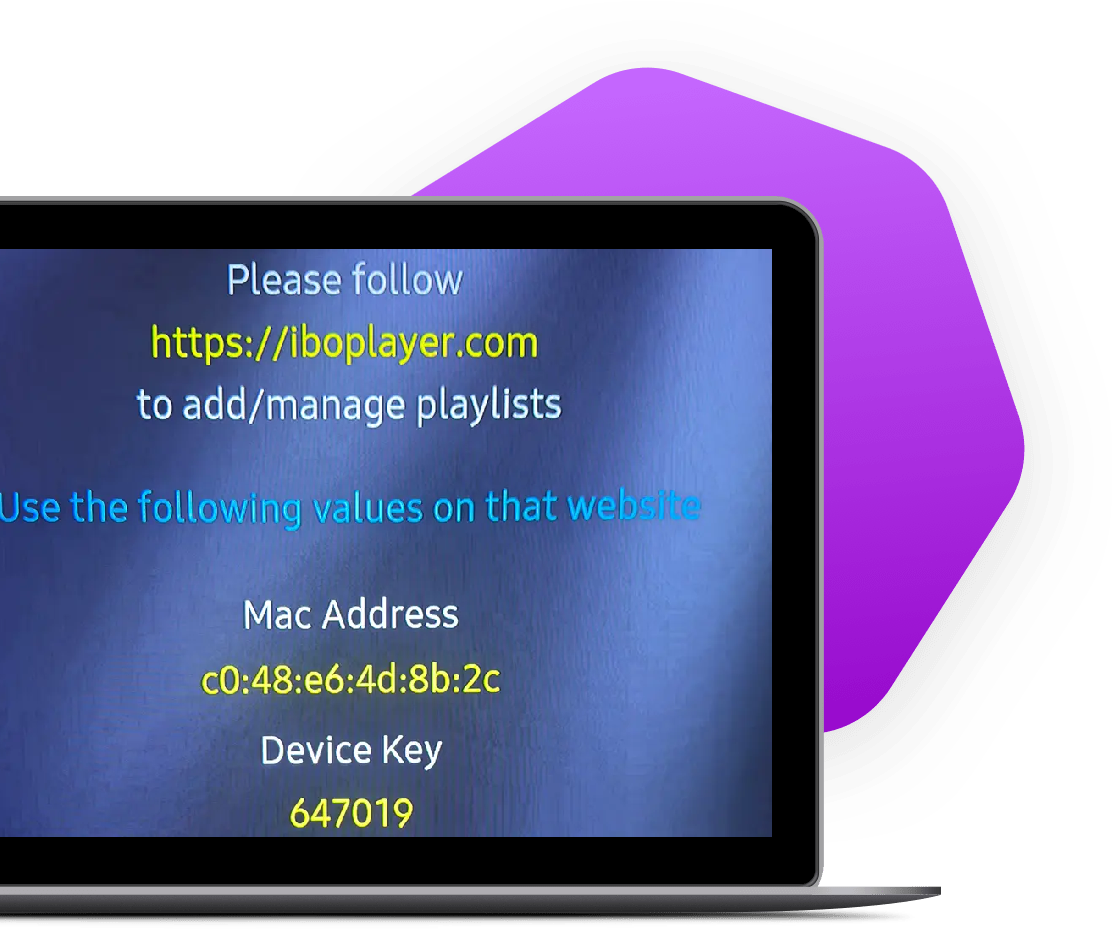
Before you begin, make sure that the IBO Player app is already installed on your device.
In addition, ensure that your device is connected to the internet.
After installation, open the IBO Player app on your Smart TV.
On the screen, you will see your MAC address and Device Key.
You will need this information in the next steps.
If your IBO Player is not activated yet, you can activate it here:
How to Upload M3U in IBO Player (Step-by-Step)
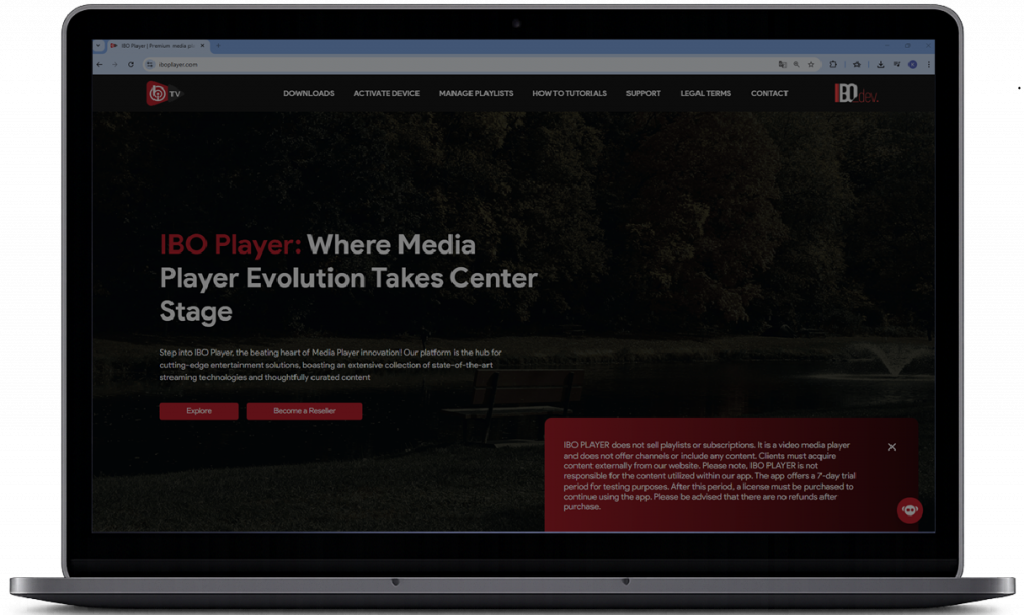
Step 1: Open the Official Website
Next, go to the official website:
When you visit the site, you will be asked to accept the legal terms.
After that, click on “Manage Playlist”.
Step 2: Login with Your Device Details
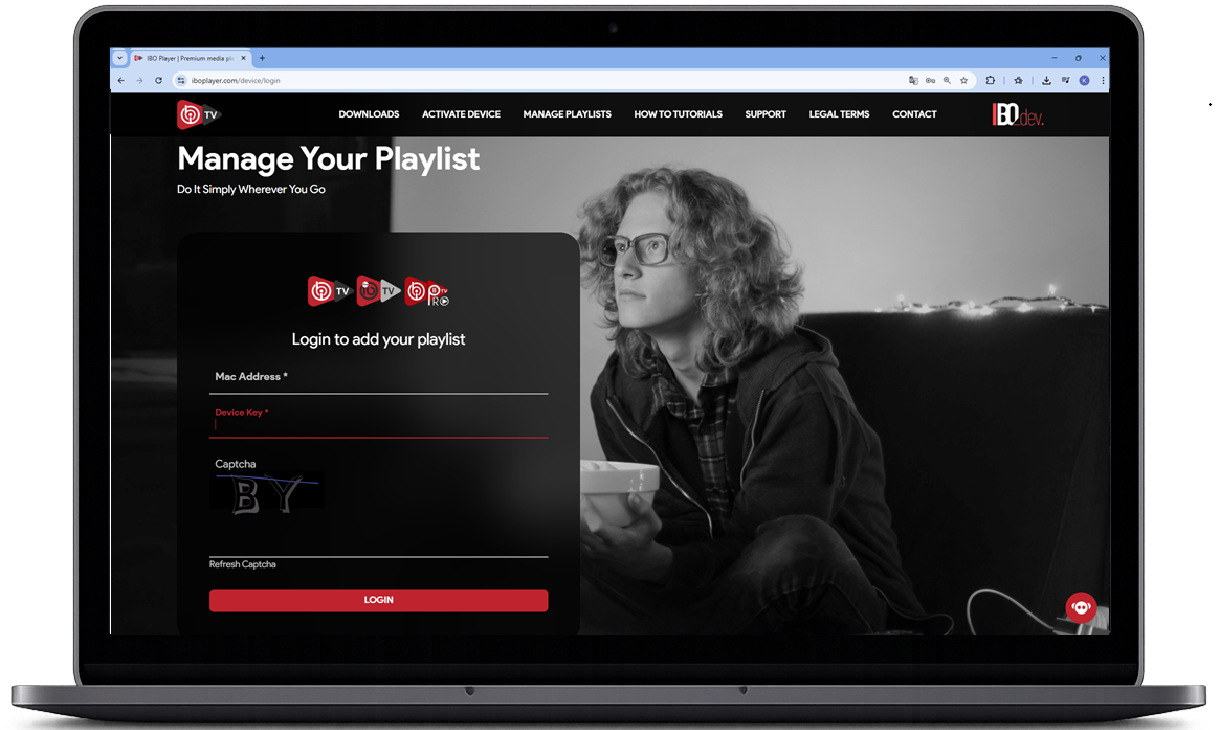
Now enter your MAC address and Device Key, which are displayed in the app.
Then complete the security check and click on Login.
Once logged in, you will be redirected to the playlist management area.
Step 3: Add Your M3U Playlist
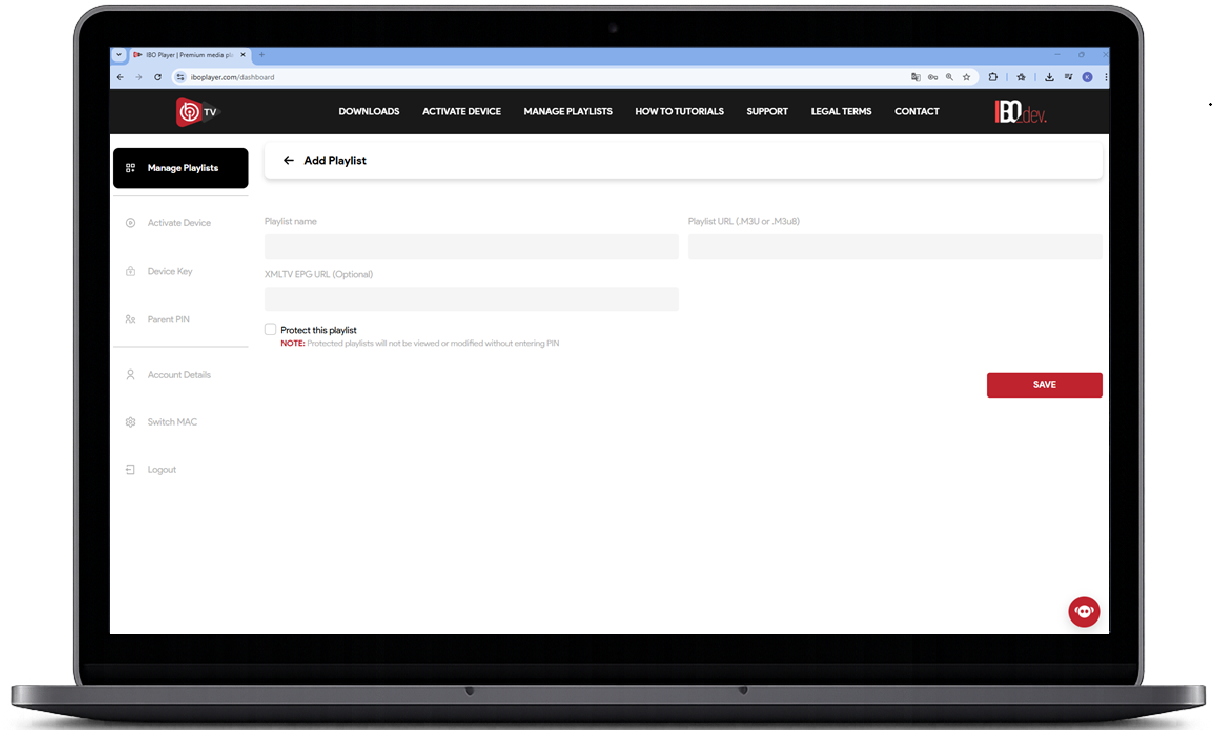
After you log in, you can add your playlist easily.
• Paste your M3U link
• Enter a playlist name
• Click “Save”
As a result, the player stores your playlist online and links it directly to your device.
Reload IBO Player App and enjoy
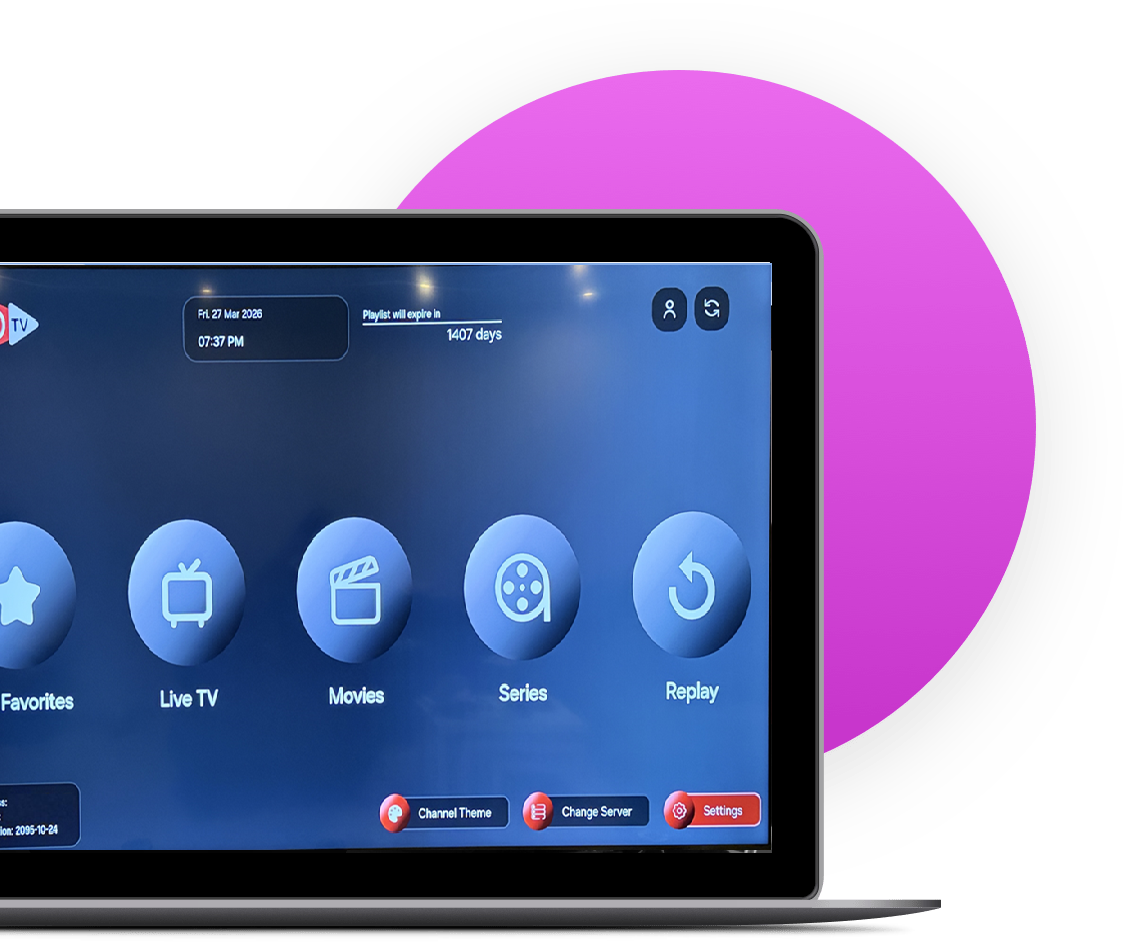
Finally, go back to your TV and reload the app.
Alternatively, restart the app completely.
After that, your channels appear immediately and you can start streaming without delay.
IBO Player M3U Upload Not Working?
Sometimes your playlist does not load correctly. However, in most cases, you can fix the issue quickly.
Common reasons include:
• You entered an incorrect M3U link
• You added extra spaces in the URL
• Your IPTV subscription is not active
• You did not restart the app
Therefore, always check your link carefully and restart the app after making changes. In most cases, this will solve the problem immediately.
How to Update or Change Your M3U Link
If your provider sends you a new playlist, you can update it بسهولة and keep your content up to date.
Follow these steps:
1. Log in to the Manage Playlist section
2. Remove your old M3U link
3. Add your new M3U link
4. Save your changes
5. Restart the app
After that, your updated playlist will load correctly on your device.
Related Guides
If you need more help, you can also check these guides:
👉 IBO Player Activation
👉 IBO Player Installation
👉 IBO Player Overview
IBO Player M3U Upload FAQ
Can I use multiple playlists?
To upload an M3U link in IBO Player, open the official website and log in using your MAC address and Device Key. Then, add your M3U link in the “Add Playlist” section and save your changes. Finally, restart the app so your playlist loads correctly.
Why is my IBO Player playlist not working?
If your playlist is not working, check your M3U link first. In many cases, users enter the link incorrectly or leave extra spaces. Also, make sure your player is activated and restart the app after updating your playlist.
Can I update or change my M3U playlist?
Yes, you can update or change your playlist at any time.Simply log in to the Manage Playlist section, remove your old link, and add your new M3U link. After that, save your changes and restart the app.Your updated playlist will then load correctly.
Do I need to activate IBO Player before uploading M3U?
Yes, you need to activate IBO Player after the 7-day trial period. Otherwise, your playlist may not be saved permanently. Therefore, we recommend activating your device before you upload your M3U playlist.
Where can I find my MAC address and Device Key?
You can find your MAC address and Device Key directly in the IBO Player app. When you open the app, both values appear on the screen. You need this information to log in and manage your playlist online.
Does IBO Player include channels or content?
No, IBO Player does not include any channels.Instead, it works as an IPTV player, so you need your own provider and a valid M3U link. Once you add your playlist, you can start streaming your content immediately.
Ready to activate your IBO Player?
Before adding your playlist, you should make sure your device is activated.
Otherwise, your playlist may not be saved permanently.
✔ Instant activation
✔ No subscription
✔ Works on all devices